

 SRP (Secure Reverse Proxy)
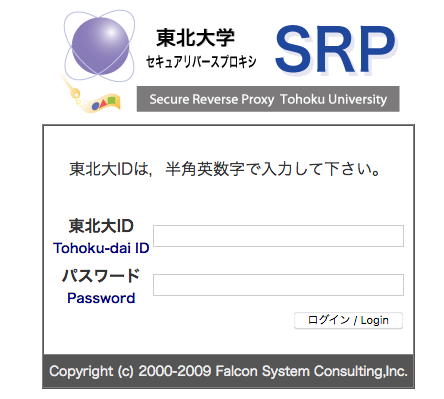
 The SRP (Secure Reverse Proxy) is a user authentication system of the information services of Tohoku University which is mainly applied for off-campus access, and it is also a gateway to the portal site for students. This page provides basic information and instructions of the SRP authentication.
The SRP (Secure Reverse Proxy) is a user authentication system of the information services of Tohoku University which is mainly applied for off-campus access. It is also a gateway to the portal site for students which includes the hyperlinks to various information services of our university. The SRP authentication is required not only for off-campus access but on-campus access in several services.
The SRP authentication involves a special auxiliary authentication, what we call the “image-matrix” authentication, in order to achieve higher security level, in addition to the usual Tohokudai-ID/Password authentication.
The SRP is provided for all students in Tohoku University, including undergraduate and graduate students. You are required no user registration in order to make use of the SRP service, but your Tohokudai-ID (and Password) is required.
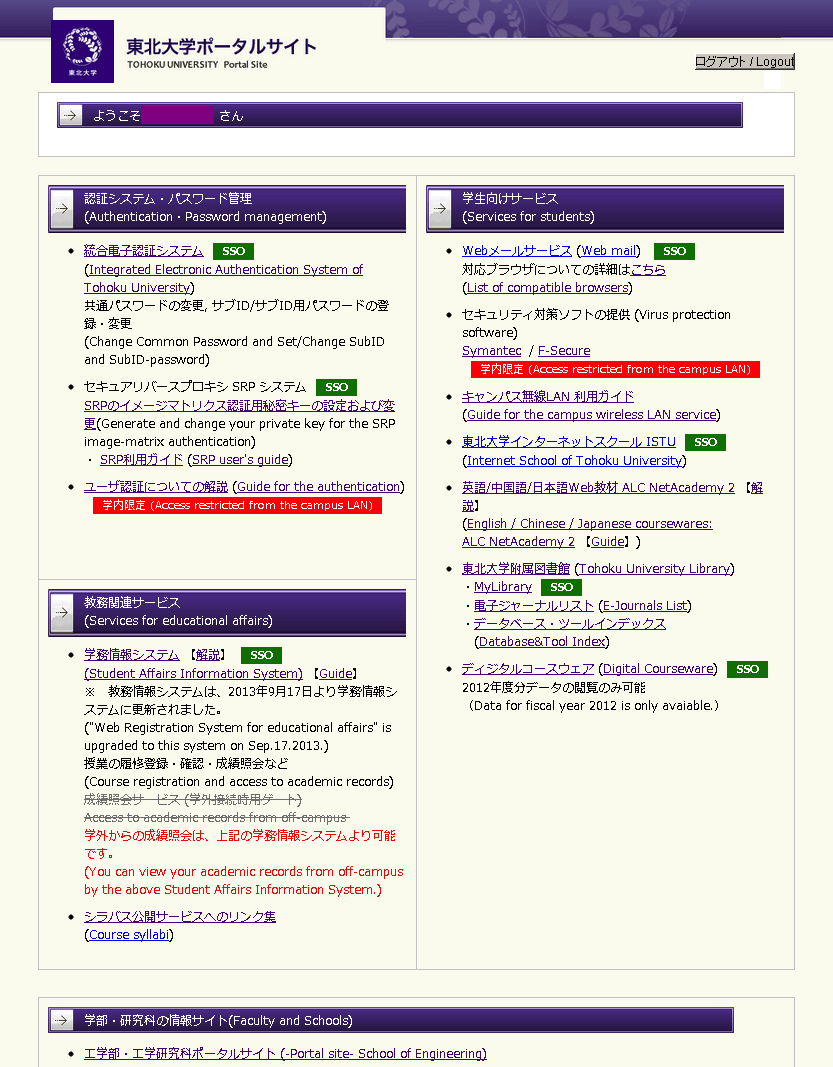
You can visit the Students’ Portal after the SRP authentication.
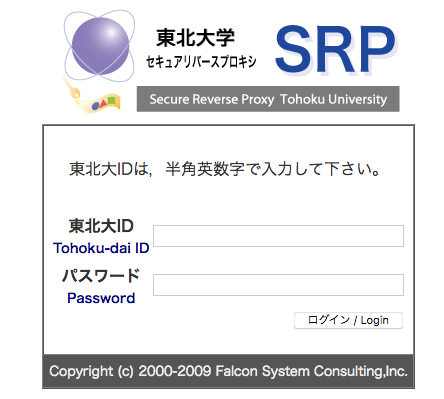
The SRP is a web-based service. You can visit the SRP’s login page by both on-campus and off-campus access.
There are two instructions of the SRP authentication, one is for on-campus access and the other is for off-campus access.
The image-matrix authentication of the SRP is a secondary authentication introduced in purpose of achieving higher security level. This is required for off-campus access after doing the usual Tohokudai-ID/Password authentication.
In the image-matrix authentication you have to apply a special secret key. This secret key is a chain of several image icons and its initial value is assigned for you by the system administrator at the time of your enrollment. To get the initial secret key of you, follow the instruction depicted in the image-matrix authentication page; scroll the screen of the image-matrix authentication page downward.
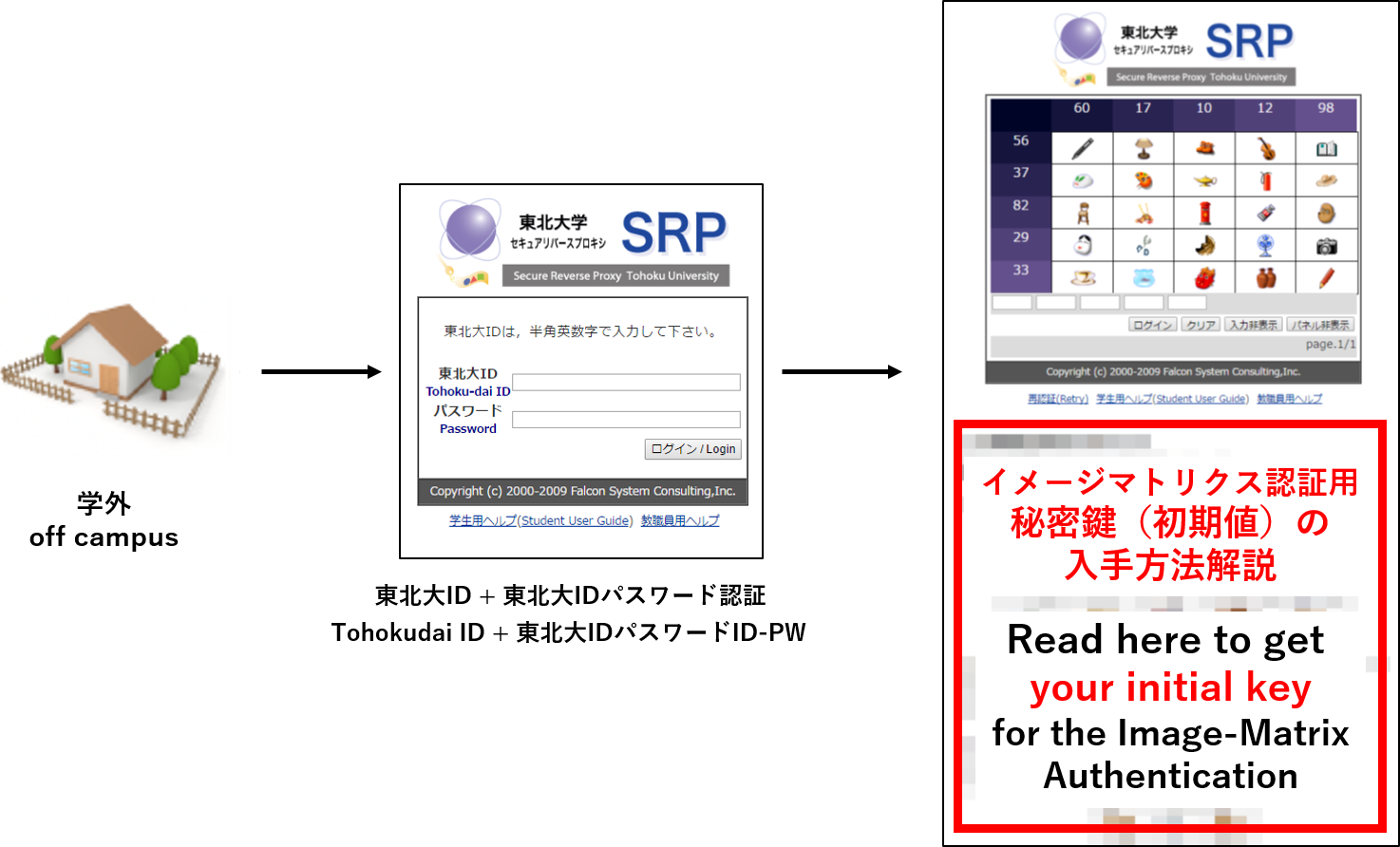
How to get the initial secret key for the image-matrix authentication
You can configure your secret key by yourself. The instruction for configuring/updating or confirming the secret key can be found in Section 3.3.
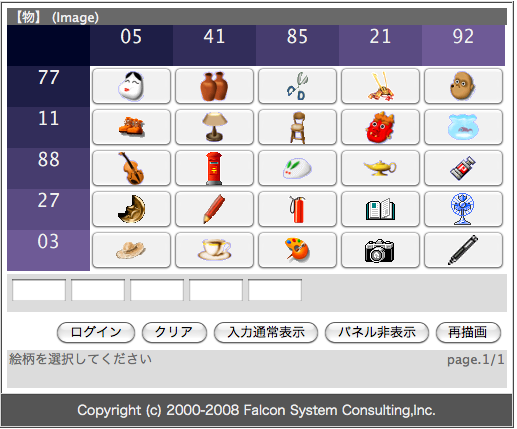
Whenever you are requested to do the image-matrix authentication (after the usual Tohokudai-ID/Password authentication), you are invited to the authentication page as depicted in the picture below.
The image-matrix authentication
Enter your password by using this image-matrix and your secret key. There are two ways to do this, one is to click the icons of your secret key in order, and the other is to type the “coordinate” of the icons in order. For example, suppose that you are given the image-matrix depicted in the picture above and your secret key is  (fishbowl, postbox, camera). Then you can do one of the following two ways.
○Click the icons of the fishbowl, postbox and camera in this order.
○Type the coordinates of the three icons in the given image-matrix. For example, the coordinate of the fishbowl is (11,92) hence you type the number “1192” in the first box. In the same way you type the coordinate “8841” of the postbox in the second box and the coordinate “0321” of the camera in the third box.
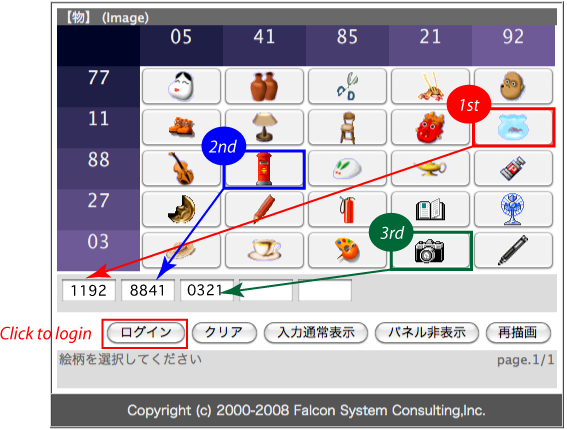
Consequently your password for this login is 1192 8841 0321.
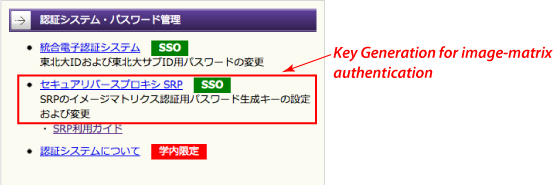
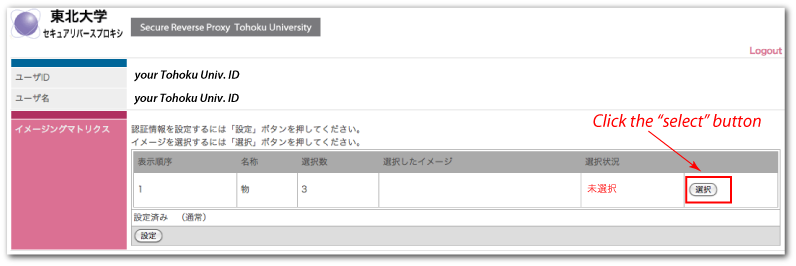
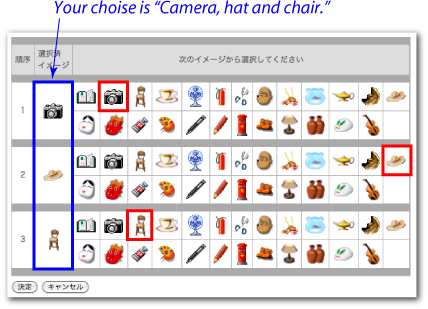
in the example above, as the most significant master key. Do NOT tell or leak this secret key to someone else.Here is an instruction for updating your secret key for the image-matrix authentication or confirming the current secret key. This instruction requires login to the Students’ Portal Site, so you can follow this instruction only through on-campus access if you have forgotten your secret key for the image-matrix authentication.
The contact address of the SRP is:
Technical Division of Center for Information Technology in Education
